
Access-a-Reader
Version 0.14.3 (beta) · Updated ·
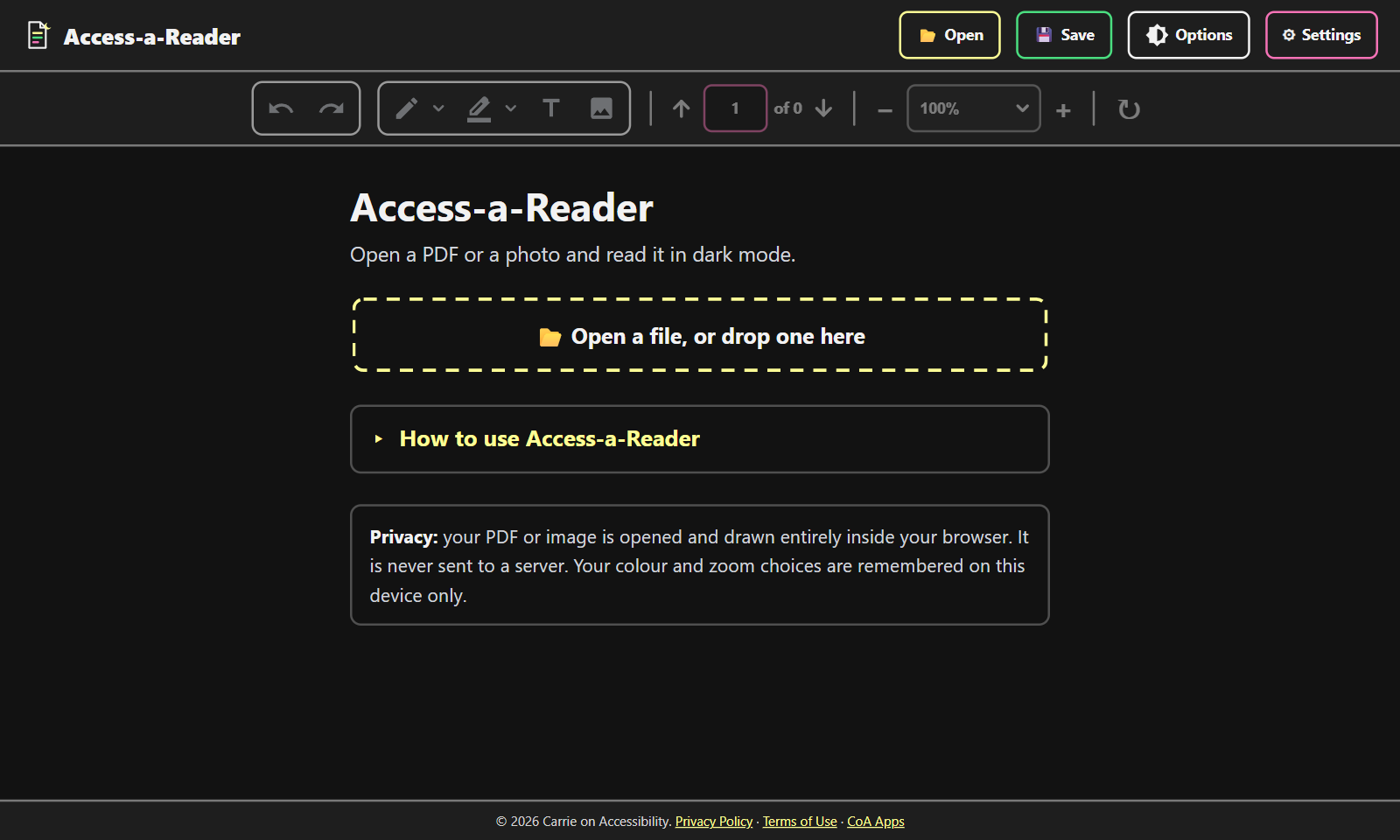
Dark mode for the documents you actually have. Access-a-Reader opens any PDF, a Word, LibreOffice or text file, or a photo or screenshot of a page, and turns it dark the right way: the page goes dark and the text light while colors keep their hue, photos and illustrations stay as they are, and the red or navy boxes with white text keep their white text. Scanned pages are cleaned up and their text is recognized on your device, so screen readers can read them and you can search them. Highlight, draw and add notes, then save the whole thing as a new PDF that looks the same in any viewer. Nothing is uploaded: your file stays on your device.
Open App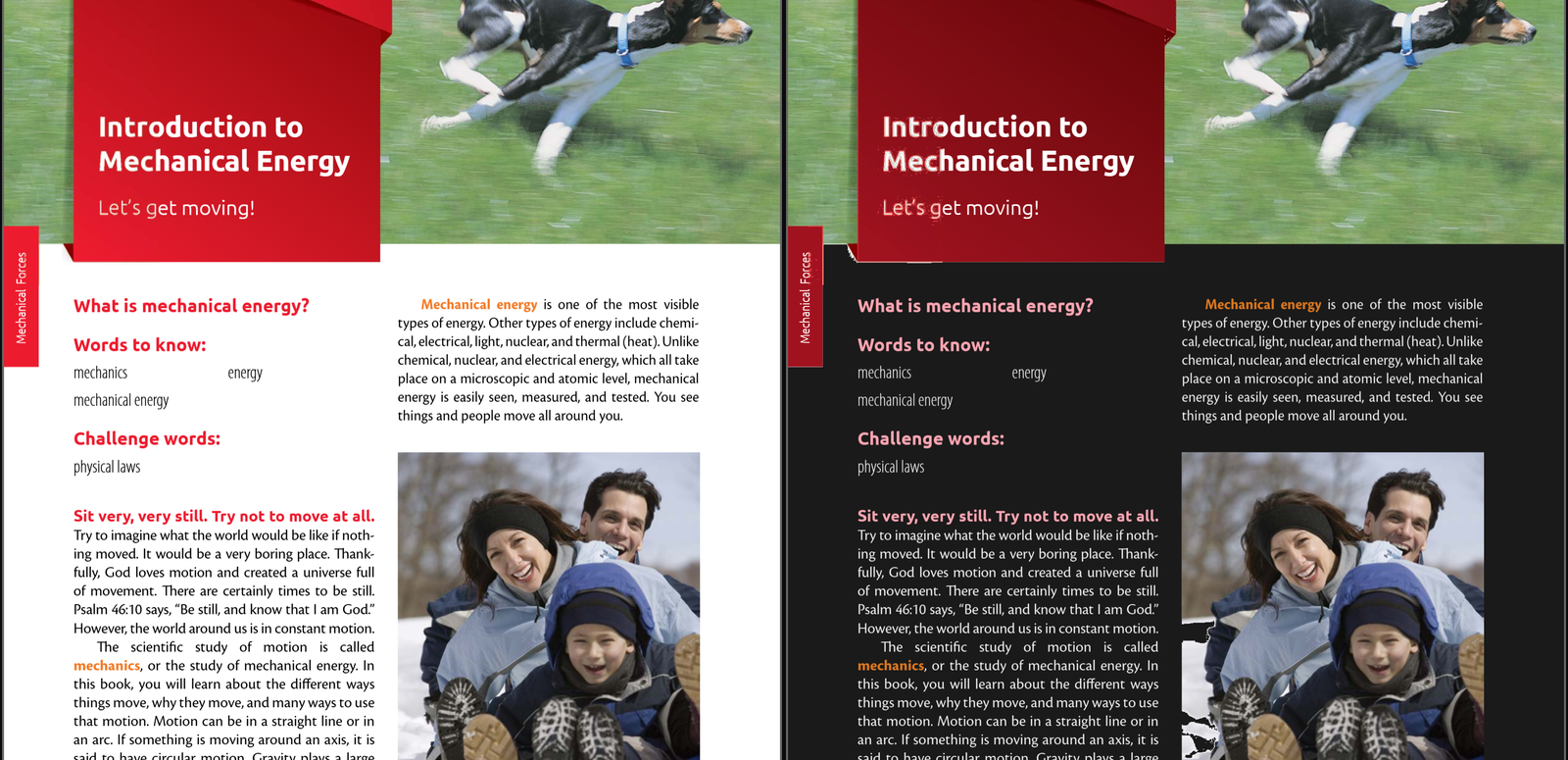
Dark Mode Done Right
The same textbook page before and after: the paper goes dark and the text light, while the red heading keeps its red and the photo stays a photo.
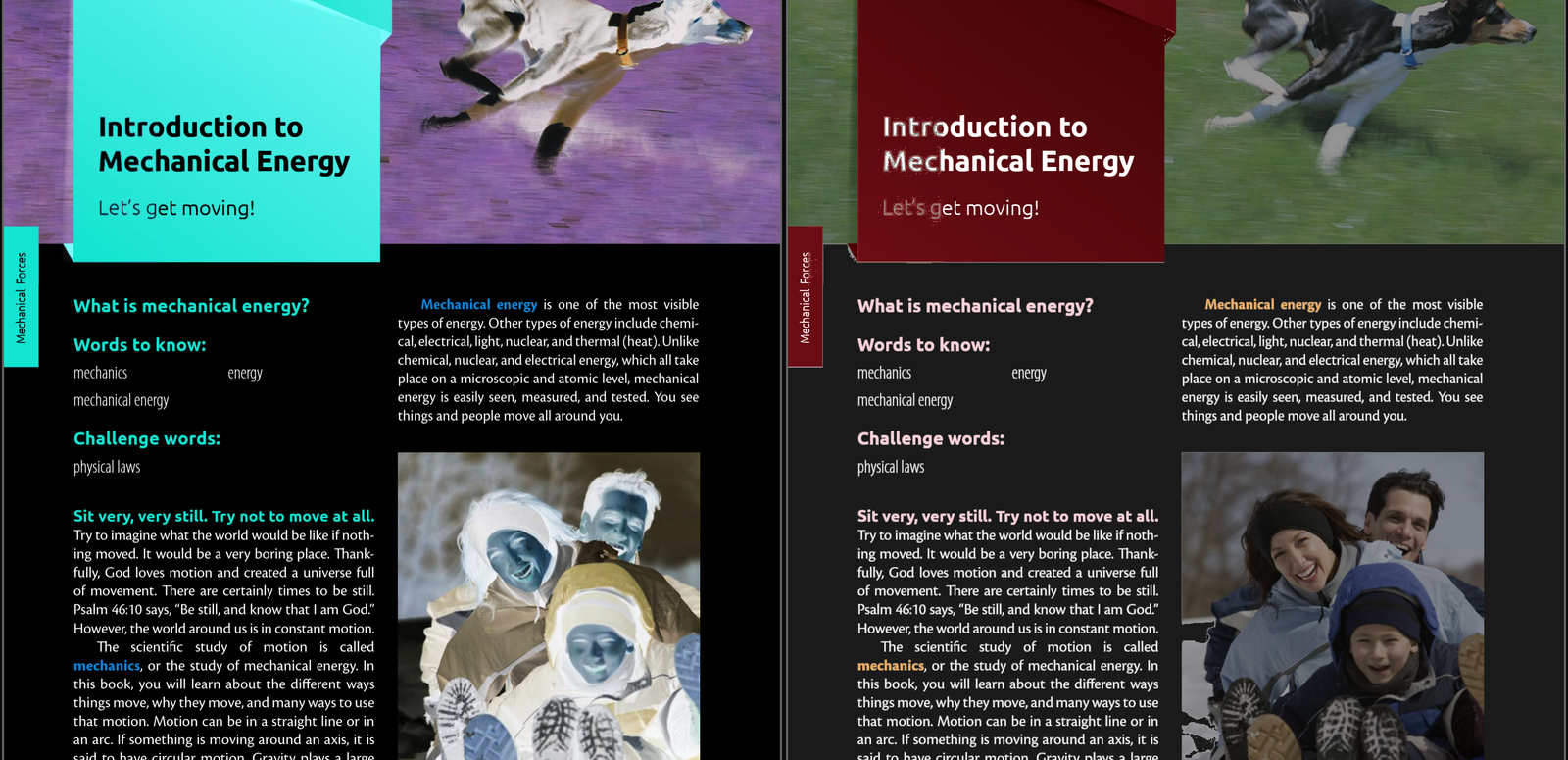
Inverted, or Dark Tuned Your Way
Left: Inverted, a plain negative of the page. Right: Dark with the pictures and the dark boxes darkened and the text brightened a step, for extra contrast.
Your Page, Your Way
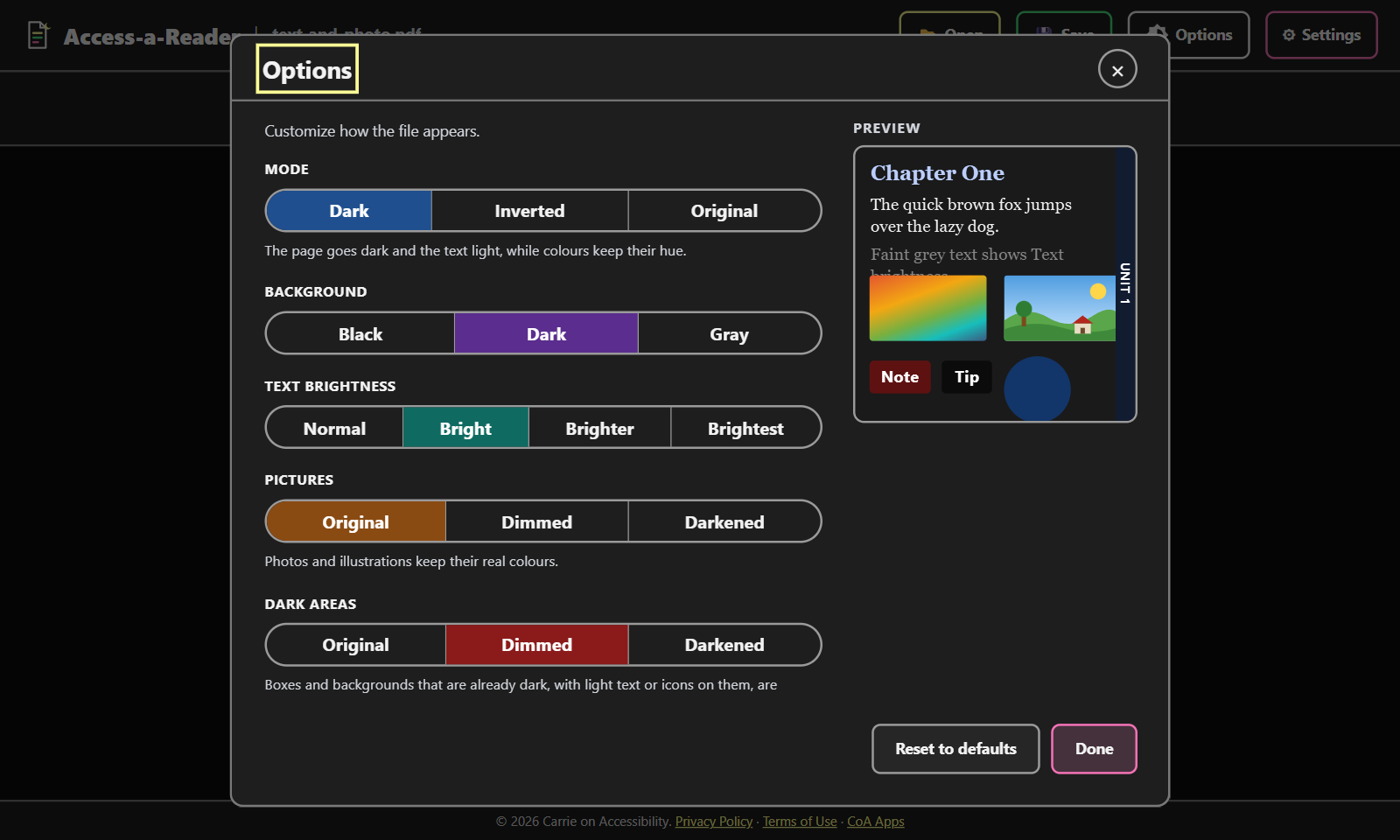
Three modes, three shades of dark, four levels of text brightness, and your choice of how pictures and dark boxes are treated, with a live preview.
Open It or Drop It
PDFs, photos and screenshots of pages, one at a time or several as one document. Recent files are one tap away.
Screenshot 1 of 4: the same textbook page in the original and in Dark mode, side by side. Dark Mode Done Right.
Key Features
- Real dark mode for PDFs — the page goes dark and the text light while colors keep their hue: orange stays orange, green stays green. Or choose Inverted (a plain negative) or Original.
- Pictures stay pictures — photos and illustrations keep their real colors, or can be dimmed or darkened, while textures, paper backgrounds and decorations go dark with the page.
- Dark boxes keep their white text — a red, navy or black box with light text or icons is shown as designed, dimmed or darkened, never flipped.
- Text brightness — four levels for PDFs whose text is faint gray; the top level takes colored text close to white.
- Scanned pages and photos of pages — paper is leveled, illustrations kept, the text recognized on your device (nothing uploaded) so screen readers can read it and you can select and search it. Sharper and Crisp settings firm up soft scans.
- Markup — highlighter, pen, text notes and stamps, in any color, with undo and redo. Marks are kept on your device and come back when you open the same file.
- Save as PDF — a new PDF that looks the way the pages look now, with the text kept underneath for search and screen readers.
- Install it — from your browser's menu, install Access-a-Reader as an app. It works offline, and on a computer it can open PDFs and images directly. On Windows, install from Edge to get the app's own icon next to your PDFs; Chrome shows its standard file icon instead.
Accessibility
- Every page is a labeled region with real, selectable text inside it, so NVDA and other screen readers read the document itself, not a picture of it. Scanned pages get the same treatment once their text has been recognized.
- Keyboard shortcuts for everything that matters: next and previous page, go to page, zoom, fit width, whole page, rotate, Dark/Inverted/Original, and Shift+/ for the full list.
- Every dialog traps keyboard focus while open, closes with Escape, and returns focus when closed.
- The page colors are fully independent of the app's own Dark/Light theme, so you can set up a high-contrast page without changing the rest of the app.
- Notes are real editable text, and a selected mark can be moved with the arrow keys and deleted with the Delete key.
Categories
Productivity Web App